Bulk HEIC to JPG Converter Online – Convert Large Batches Without Crashing Free
Bulk HEIC Conversions: How to Convert Large iPhone HEIC Batches Offline Without Killing Your RAM
If you’ve ever dragged 200+ HEIC photos from an iPhone backup into an online converter and watched the tab freeze, spin, and eventually crash — you’re not alone. It’s one of the most common complaints with browser-based HEIC to JPG tools, and it’s not a bug in your browser. It’s a design flaw in how most converters handle images.
This guide breaks down exactly why bulk HEIC conversions crash browsers, how a properly built client-side converter avoids it, and how to convert large batches of iPhone photos entirely offline — without uploading a single file to a server.
Try It: Convert HEIC to JPG in Bulk, On-Device
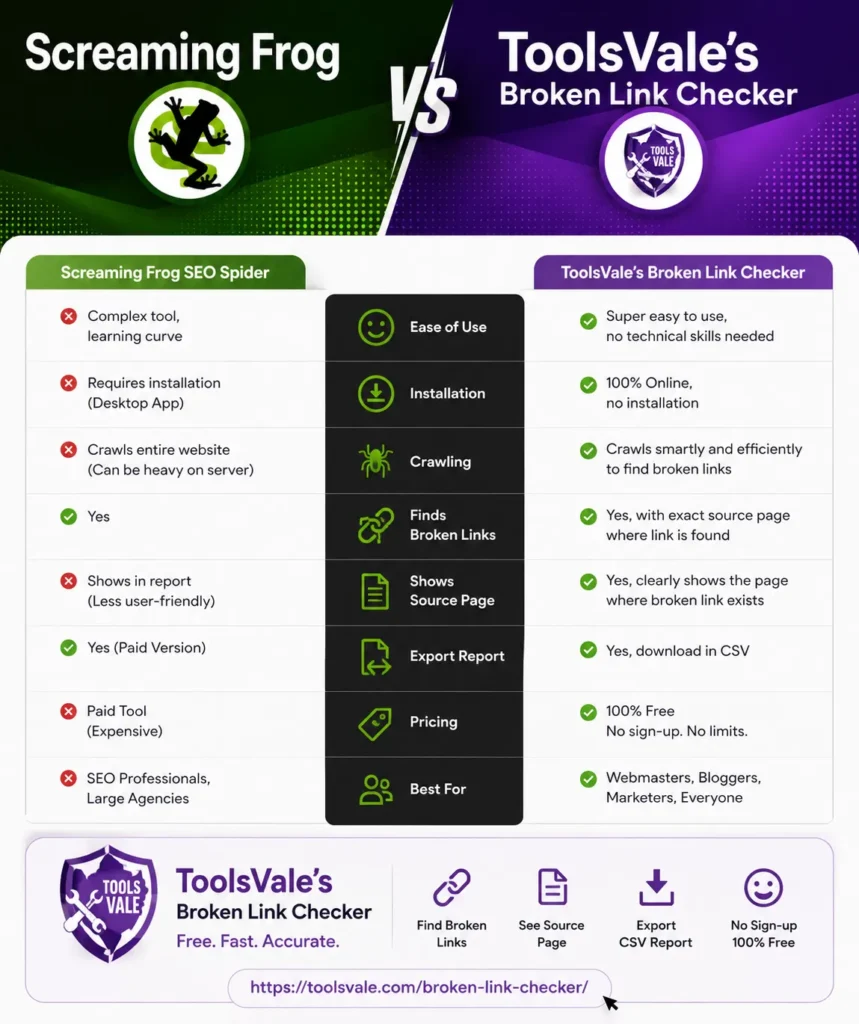
ToolsVale’s HEIC to JPG converter uses exactly this chunked, sequential approach — files are decoded and released one at a time, so batches from a full iPhone camera roll convert without freezing the tab or losing progress partway through. It’s free, has no upload limit tied to server storage, and never sends your photos anywhere.
If you need a different output format, the same on-device engine also powers:
- HEIC to PNG — for images that need transparency preserved
- HEIC to WebP — smaller file sizes for web use
- HEIC to PDF — bundling photos into a single document
And once your photos are converted, you can compress or resize them in the same browser tab — no re-upload needed.
Why Bulk HEIC Conversion Crashes Your Browser
HEIC (High Efficiency Image Container) is Apple’s default photo format since iOS 11. It compresses images far better than JPG, which means a single HEIC file that looks like a 2–3MB photo can decode into a 20–40MB raw bitmap once your device — or your browser — has to actually render the pixels underneath.
Most “free online HEIC converter” sites work the same broken way:
- They load every file in your batch into memory at once, often as full decoded bitmaps.
- They keep all of those decoded images alive simultaneously so a progress bar can render thumbnails.
- They never release memory for a file after it’s converted, because the whole batch is held in one array for the final ZIP download.
Multiply that by 100–500 photos from a single iPhone backup, and you’re asking the browser tab to hold several gigabytes of decoded image data in memory at once. Chrome and Safari both cap tab memory, and when a page exceeds it, the tab doesn’t slow down gracefully — it crashes outright, usually right before the ZIP file finishes generating. That’s the exact failure point most users hit, and it’s why “bulk heic converter” searches are full of people asking why their batch died at 80%.
The Fix: Chunked, Sequential Processing Instead of Bulk Loading
The technical fix isn’t complicated, but almost no tool bothers to implement it properly. Instead of decoding every file in the batch upfront, a memory-safe converter processes files one at a time, in small sequential chunks, and immediately releases each image from memory once it’s written to output.
Here’s the general pattern this relies on:
- Read files as a queue, not an array of loaded images. The file list is just metadata (name, size, reference) until a file is actively being processed.
- Decode one image at a time using an off-screen canvas. Once the HEIC is decoded and re-encoded to JPG, the canvas and the decoded bitmap are dereferenced immediately.
- Write output incrementally. Instead of holding every converted JPG in memory to build one giant ZIP at the end, output is streamed into the archive as each file finishes.
- Force garbage collection breathing room. By awaiting a short tick between files (via
requestIdleCallbackor a microtask delay), the browser gets a chance to actually reclaim memory instead of queuing collection behind a blocking loop.
A simplified version of the loop looks like this:
async function convertBatch(files, onProgress) {
  for (let i = 0; i < files.length; i++) { const bitmap = await createImageBitmap(files[i]); // decode one file const canvas = new OffscreenCanvas(bitmap.width, bitmap.height); const ctx = canvas.getContext('2d'); ctx.drawImage(bitmap, 0, 0); const blob = await canvas.convertToBlob({ type: 'image/jpeg', quality: 0.9 }); await writeToArchiveStream(files[i].name, blob); // stream to zip, don't hold in RAM bitmap.close(); // explicitly release decoded image data onProgress(i + 1, files.length); await new Promise(r => setTimeout(r, 0)); // yield to let GC run
  }
}
The key line most converters skip is bitmap.close() — an explicit call that tells the browser it can reclaim that decoded image’s memory right now, rather than waiting for garbage collection to eventually notice nothing references it anymore. Combined with streaming the ZIP output instead of buffering it, peak memory usage stays roughly flat regardless of whether you’re converting 10 photos or 1,000 — because the browser only ever holds one or two images at a time, not the whole batch.
Why This Matters More for iPhone Photos Specifically
iPhone HEIC files are frequently shot at 12MP or higher, and Live Photos and ProRAW captures push file sizes even further. A batch pulled straight from an iCloud or Finder backup is exactly the worst-case scenario for a bulk converter: dozens to hundreds of large, high-resolution files converted in one sitting. This is precisely the workload that exposes memory-hungry converters — and precisely why “chunked” processing isn’t a nice-to-have for this use case, it’s the only approach that actually finishes the job.
What “Offline” Should Actually Mean
A lot of tools marketed as “convert HEIC offline” still upload your files to a server to do the actual HEIC decoding, then just skip storing them afterward. That’s not offline — it’s “we delete it after,” which still means your photos left your device.
A genuinely offline converter does 100% of the decode-and-re-encode work using your browser’s own createImageBitmap and Canvas APIs. Nothing is ever sent anywhere. You can verify this yourself in under a minute:
- Open your browser’s DevTools (F12 or right-click → Inspect).
- Go to the Network tab.
- Convert a batch of HEIC files.
- If the request list stays empty during conversion, the processing is genuinely local — your photos never left your machine.
FAQ
Why does my browser crash converting HEIC photos in bulk?
Most converters decode every image in your batch into memory at once and hold them all until the download is ready. With dozens of high-resolution iPhone photos, that can exceed several gigabytes, which crashes the browser tab.
Is it safe to convert HEIC files online?
Only if the conversion actually happens in your browser rather than on a server. Check the Network tab in DevTools during conversion — no outgoing requests means your files stayed local.
What’s the largest batch I can convert without crashing?
With chunked, sequential processing, batch size is limited mainly by your device’s available RAM and patience, not by the tool itself, since memory usage per file stays constant rather than accumulating.