Free Online Converter Privacy
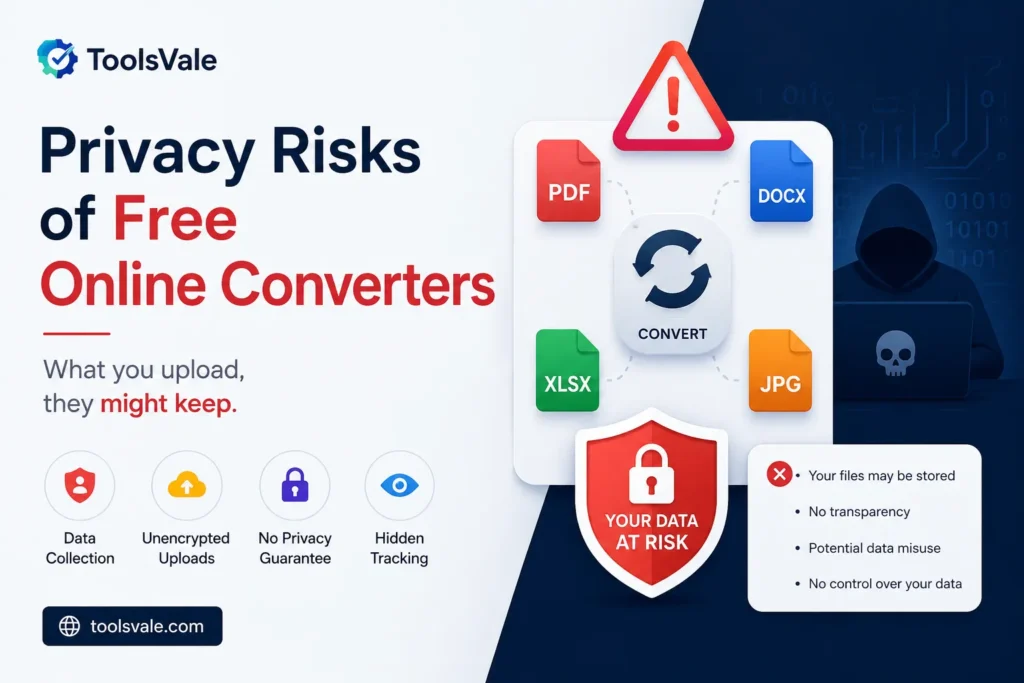
Free online converter privacy is not something most people think about before dropping a file into a conversion tool. But the gap between what these tools promise and what they actually do with your data is significant. In March 2025, the FBI issued a public warning about free converter sites distributing malware — that made headlines. What did not make headlines is the quieter problem: even the legitimate converters upload your file to a server you do not control, process it there, and promise — somewhere in a policy page you did not read — to delete it eventually. This post covers both problems, and a 30-second check that separates a tool that keeps your file from one that does not.
There is a category of online tools that solves the free online converter
privacy problem by architecture rather than by policy. Browser-based converters
use JavaScript and WebAssembly to decode, convert, and re-encode your file
entirely inside your browser tab.
What the FBI actually warned about
On March 7, 2025, the FBI Denver Field Office published an advisory about free online document converter tools being used to distribute malware. The warning was specific: criminals were creating websites that mimicked legitimate file converters — PDF to DOCX, JPG to PNG, MP4 to MP3 — and the tools worked as advertised. The file got converted. But the output also contained embedded malware, and the uploaded file was scraped for passwords, banking details, and cryptocurrency wallet information.
Malwarebytes confirmed the finding, reporting that they had observed these sites installing not just ransomware but browser hijackers, adware, and spyware. Palo Alto Networks’ Unit 42 reported that over 33% of the top 1,000 malicious URLs they tracked in 2024 were disguised as productivity tools — file converters, resume builders, and PDF editors. The category that feels harmless is the category attackers target.
That was the malicious end of the spectrum. But it raised a question most people skipped over: what do the legitimate converters do with your file?
The quieter problem with legitimate converters
When you use a typical online converter — even a reputable one — your file does not stay in your browser. It gets uploaded to a remote server, processed there, and the result is sent back. For a meme you are resizing, that probably does not matter. For the documents people actually convert — salary slips, tax returns, contracts with signatures, client presentations under NDA, passport scans, medical reports — it matters a great deal.
The privacy risk is not that these companies are malicious. It is that your file now exists on infrastructure you cannot audit, governed by a retention policy you did not read, protected by security investments you cannot verify. The file is transmitted over the network, stored in memory (or on disk), and — depending on the service — may persist in backups, CDN caches, or processing logs well beyond the stated deletion window.
If you would not email a file to a stranger, do not upload it to a free converter. That single heuristic eliminates most of the risk, because the files worth worrying about are precisely the ones people convert most often.
What privacy policies actually say when you read them
We read the publicly available privacy policies of several popular free converters. The language varies, but three patterns recur.
Vague retention windows. “Files are deleted after a reasonable period” does not tell you anything. Reasonable to whom? A reasonable period could be an hour or a fiscal quarter. Without a specific number — “deleted within one hour,” “deleted immediately after processing” — you are trusting a feeling, not a commitment.
Sub-processor pass-through. Many free converters are front-ends for third-party APIs. Your file is uploaded to Service A, which sends it to API Provider B for processing. Provider B has its own retention policy, its own security posture, and its own jurisdiction. This is sometimes not disclosed in the UI at all.
Broad content licences. To process your file, a service needs a licence to access it. That is legally necessary. But some policies go further, reserving the right to use uploaded content for “service improvement” — language vague enough to cover training a machine learning model on your uploaded contracts.
Browser-based processing is a structural fix
There is a category of online tools that solves this problem by architecture rather than by policy. Browser-based converters use JavaScript and WebAssembly to decode, convert, and re-encode your file entirely inside your browser tab. The file is read from your device into browser memory, processed there, and the result is offered as a download. At no point does the file leave your machine.
This is not a privacy policy. It is a technical constraint. There is no server to breach, no retention window to trust, no sub-processor to worry about, and no network request to intercept. The file exists only in your browser’s memory and is garbage-collected when you close the tab.
The distinction matters because it is verifiable. You do not have to trust what a company says about its data handling. You can check what it actually does, yourself, in about 30 seconds.
How to check any online tool in 30 seconds
This works in Chrome, Firefox, Edge, and Safari on desktop. It is the single most useful thing in this entire post.
- Open the tool’s page in your browser. Load the converter you want to test — any converter, including ours.
- Open DevTools. Press
F12on Windows/Linux, orCmd + Option + Ion Mac. Click the Network tab. - Clear the log and start recording. Click the clear button (🚫) so you start with an empty list. Make sure recording is on (the red dot should be active).
- Run the conversion. Drop your file in, click convert, wait for the result.
- Look at the Network log. If the tool uploaded your file to a server, you will see a large outbound request — the size will roughly match your file. If you see no such request, the file never left your device.
That is it. A 3 MB image that gets converted with zero outbound requests larger than a few kilobytes was processed locally. A 3 MB image that triggers a 3 MB POST request to an API endpoint was uploaded.
There is an even simpler test for tools that claim to work offline: disconnect from the internet after the page loads and run the conversion. If it still works, the processing is genuinely local. If it fails, it needed the server.
What ToolsVale does — and where we draw the line
39 of our 49 tools run entirely in your browser. The file is never transmitted. You can verify this with the DevTools check above on any of them — we wrote it into our own FAQ for exactly this reason.
Here is a sample of tools that process locally and what runs under the hood:
| Tool | What it does | Processing |
|---|---|---|
| AVIF to PNG | Converts AVIF images to lossless PNG with transparency | Browser — Canvas API |
| Crop Image | Crop to any ratio or exact pixel size, batch | Browser — Canvas API |
| Compress Image | Reduce file size with a quality slider, before/after preview | Browser — Canvas API |
| Markdown Viewer | Render .md files with tables, code blocks, syntax highlighting | Browser — JavaScript |
| JPG to WebP | Convert JPG to WebP with quality control | Browser — Canvas API |
| Video to Frames | Extract frames from video at any interval | Browser — Canvas + Video API |
| Image Color Picker | Pick colours from any image, get HEX/RGB/HSL | Browser — Canvas API |
The remaining 10 tools need server-side processing — they handle formats or operations that JavaScript and WebAssembly cannot do in a browser today, or they need to make outbound HTTP requests (like validating a sitemap by fetching its URLs). Every one of those tools carries a visible badge on its card: “server · 1h delete” — telling you before you click that the file will be uploaded, and that it will be deleted within one hour.
We did not bury this in a policy page. It is on the tool card, in the same place you see the tool’s name.
Why this matters more for some files than others
Not every file needs this level of caution. A meme, a stock photo, a logo you are resizing for social media — upload it wherever you like. The converter’s retention policy is irrelevant when the file is already public.
The files that warrant caution are the ones with information density: financial documents with account numbers, identity documents with personal details, legal contracts with signatures, internal company presentations with unreleased data, medical records, HR documents, and anything covered by an NDA or regulatory requirement like GDPR or HIPAA.
The irony is that these are exactly the files people convert online most often. A salary slip needs to go from PDF to image for a rental application. A contract needs to merge from multiple PDFs into one. A passport scan needs to be compressed for an online form. Each of these is a high-value document uploaded to a free tool with a vague retention policy, because the alternative — installing desktop software — feels like more work than it should be.
Browser-based tools eliminate that trade-off. The convenience of an online tool, with the privacy of a desktop one. No install, no upload.
What to look for when choosing a converter
Five signals that separate a privacy-respecting tool from one that is not.
| Signal | What it tells you |
|---|---|
| No upload progress bar | If you see a percentage climbing during “upload,” the file is going to a server. Browser tools do not upload. |
| Works offline | Disconnect after the page loads. If conversion still works, it is local. If it fails, it needed the server. |
| No file-size pricing tiers | Local processing costs the provider nothing per file. If they charge by size, a server is involved. |
| Transparent architecture label | Tools that process locally tend to say so prominently. Tools that upload tend to say nothing about it. |
| DevTools confirms it | Open Network tab, run conversion, check for outbound file requests. This overrides any marketing claim. |
When server-side processing is unavoidable
Browser-based processing is not always possible. Some operations genuinely require a server — fetching external URLs (like a sitemap validator that health-checks your pages), running AI models too large for browser memory, or processing formats that no browser API supports yet.
The question is not whether a tool uses a server. It is whether it tells you. A tool that labels its server-side processing visibly — stating the deletion window on the tool page, not in a policy document — is being honest about its architecture. A tool that silently uploads your file and says nothing about where it goes is making a decision about your data without your input.
At ToolsVale, the 10 tools that use a server each carry a visible “server · 1h delete” badge. The file is uploaded over TLS, processed, and deleted within one hour. We could have hidden this in a privacy policy. We put it on the card instead, because the moment to tell someone their file will be uploaded is before they upload it — not after.
Frequently asked questions
Are free online file converters safe?
It depends on the tool. The FBI warned in March 2025 that some free converters distribute malware. Even among legitimate tools, most upload your file to a remote server for processing. Browser-based converters that process files locally are the safest option — your data never leaves your device. You can verify any tool’s behaviour by opening your browser’s DevTools Network tab and checking for outbound file requests during conversion.
How can I tell if a converter uploads my file?
Open DevTools (F12 or Cmd+Option+I), go to the Network tab, clear the log, and run the conversion. If you see a large outbound request matching your file size, the file was uploaded. If the conversion completes with no such request, it was processed locally in your browser. You can also disconnect from the internet after the page loads — if conversion still works, it is local.
What is browser-based processing?
Browser-based processing means the file is decoded, converted, and re-encoded inside your browser using JavaScript and WebAssembly. The file is read from your device into browser memory, processed there, and offered as a download. It is never transmitted over the network. This is a structural privacy guarantee — there is no server to breach and no data to retain.
Which ToolsVale tools upload to a server?
10 of our 49 tools use server-side processing for operations that browsers cannot handle locally — primarily tools that need to fetch external URLs or run AI models. Each one is labelled with a “server · 1h delete” badge on its tool card, visible before you use it. The other 39 tools process files entirely in your browser.
Should I avoid all online converters after the FBI warning?
No — the FBI warning was about malicious sites impersonating converters, not about the category as a whole. The practical takeaway is to avoid unknown converter sites that appear in sponsored search results, and to prefer tools that process files in your browser where possible. For sensitive files, the simplest rule is: if you would not email it to a stranger, do not upload it to a free converter. Use a browser-based tool instead.
Is converting files in my browser slower than uploading?
Usually faster. There is no upload time, no server queue, and no download wait. A batch of forty images finishes at the speed of your device’s processor, not the converter’s bandwidth. The only limit is your device’s available memory — modern laptops handle files of several hundred megabytes comfortably.