
What Are Open Graph Tags? Complete OG Meta Tags Guide
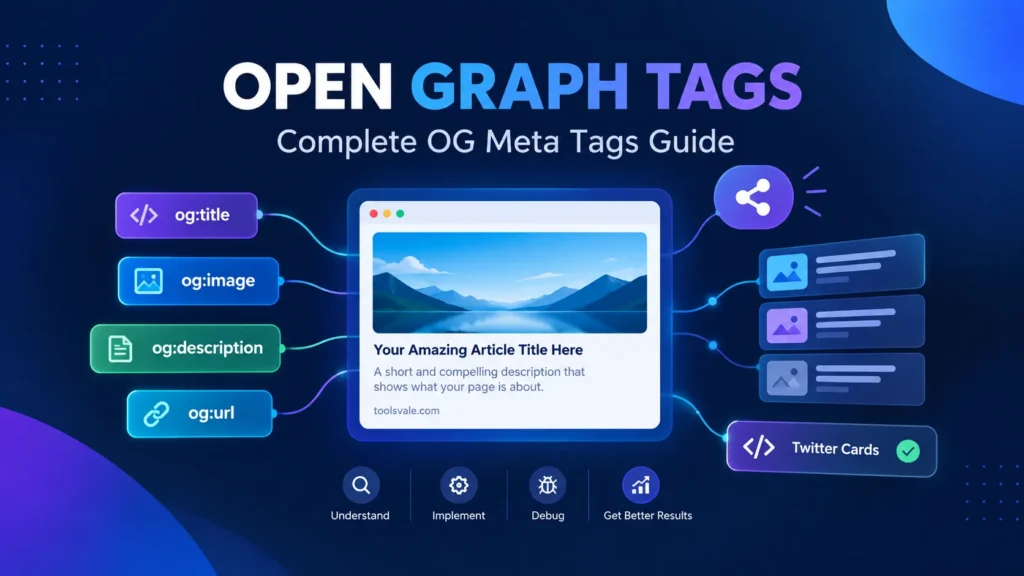
When someone drops your link into Slack, LinkedIn, or a WhatsApp group, the preview card that appears — title, image, description — isn’t pulled from thin air. It’s read directly from Open Graph tags in your page’s HTML. Get them right and your link looks polished, branded, clickable. Get them wrong — or skip them entirely — and your URL shows up as a bare text link with a broken thumbnail that nobody clicks.
Open Graph (OG) is a metadata protocol that tells social platforms and messaging apps exactly how to display your content when it’s shared. Facebook created it in 2010 to standardize link previews, and it became the de facto standard almost immediately. Today, Facebook, LinkedIn, X (Twitter), Discord, WhatsApp, Slack, Telegram, iMessage, Pinterest, and Reddit all read OG tags. So do AI search engines — Perplexity, ChatGPT with browsing, and Google’s AI Overviews all consume OG metadata to understand page identity and context.
This guide covers every OG property, the exact image dimensions each platform expects, how to implement tags in WordPress and other CMSes, how to debug previews when they break, and the mistakes that silently kill your click-through rates from social shares.
How Open Graph Tags Work
OG tags are <meta> elements placed inside the <head> section of your HTML. They use the property attribute (not name) with an og: prefix. When a platform’s crawler fetches your page — Facebook’s facebookexternalhit, LinkedIn’s LinkedInBot, Slack’s Slackbot — it reads these tags and builds the preview card from them.
Without OG tags, each platform falls back to its own scraping heuristics: pulling the <title> tag, guessing a description from the first paragraph, and picking whatever image it finds first (often a logo, an icon, or nothing at all). The result is inconsistent, ugly, and uncontrollable.
With OG tags, you define exactly what appears. Same preview, same image, same description — across every platform that supports the protocol.
Every Open Graph Tag Explained
The Open Graph protocol defines four required properties and several optional ones. Here’s the complete reference:
Required Tags
Every page that might be shared on social media needs these four tags at minimum. Without them, platforms either fall back to heuristics or display an incomplete card.
| Tag | What It Controls | Example Value | Notes |
|---|---|---|---|
og:title |
Preview card headline | How to Audit Your Site’s Internal Links | Keep under 60 characters. Does NOT need to match your SEO <title> tag. |
og:type |
Content classification | article | Use article for blog posts, website for homepages and tool pages, product for e-commerce. |
og:image |
Preview card image | https://example.com/images/og-internal-links.jpg | Must be an absolute HTTPS URL. This single tag has the biggest impact on click-through rate. |
og:url |
Canonical URL for the shared object | https://example.com/internal-link-audit/ | Should match your canonical tag. Platforms use this to deduplicate shares. |
Recommended Tags
These aren’t technically required by the protocol, but every major platform reads them and your previews look noticeably better with them.
| Tag | What It Controls | Example Value | Notes |
|---|---|---|---|
og:description |
Preview card subtext | A step-by-step method for finding orphan pages, redirect chains, and anchor text problems. | Keep under 200 characters. This is your social pitch — different intent than your SEO meta description. |
og:site_name |
Publisher name shown above or below the card | ToolsVale | Your brand, not the page title. Appears differently on each platform. |
og:locale |
Language and region | en_US | Defaults to en_US if omitted. Set it explicitly for non-English content. |
Content-Type Specific Tags
When og:type is set to article, you can include additional properties that platforms use for richer displays:
| Tag | Purpose | Example |
|---|---|---|
article:published_time |
Publication date (ISO 8601) | 2026-09-16T10:00:00+00:00 |
article:modified_time |
Last update date | 2026-09-16T14:30:00+00:00 |
article:author |
Author URL or name | https://example.com/team/karan/ |
article:section |
Content category | SEO Tools |
article:tag |
Topic tags (one per tag element) | open graph, meta tags, social SEO |
For product pages, the protocol supports product:price:amount, product:price:currency, and product:availability — though Facebook and Pinterest are the only platforms that meaningfully render product-specific OG data.
Complete Code Example — Blog Post
<head>
  <!-- SEO tags -->
  <title>How to Audit Internal Links (2026 Guide) | YourSite</title>
  <meta name="description" content="Find broken links, orphan pages, and redirect chains with this step-by-step audit process.">

  <!-- Open Graph tags -->
  <meta property="og:title" content="How to Audit Your Site's Internal Links — The Complete Method">
  <meta property="og:type" content="article">
  <meta property="og:image" content="https://yoursite.com/images/og-link-audit.jpg">
  <meta property="og:url" content="https://yoursite.com/internal-link-audit/">
  <meta property="og:description" content="Step-by-step: find orphan pages, fix redirect chains, and clean up anchor text in one audit session.">
  <meta property="og:site_name" content="YourSite">
  <meta property="og:locale" content="en_US">
  <meta property="article:published_time" content="2026-09-16T10:00:00+00:00">
  <meta property="article:modified_time" content="2026-09-16T10:00:00+00:00">

  <!-- Twitter Card tags -->
  <meta name="twitter:card" content="summary_large_image">
  <meta name="twitter:title" content="How to Audit Your Site's Internal Links">
  <meta name="twitter:description" content="Find orphan pages, redirect chains, and anchor text issues.">
  <meta name="twitter:image" content="https://yoursite.com/images/og-link-audit.jpg">
</head>
og:image — The Tag That Makes or Breaks Your Previews
Of all the OG properties, og:image has the single biggest impact on whether someone clicks your link or scrolls past it. A missing image, a broken URL, or a poorly cropped photo can tank your click-through rate from social shares — and every platform handles images slightly differently.
The Universal Rule
Use 1200 × 630 pixels at a 1.91:1 aspect ratio. This is the standard that works well across the largest number of platforms without major cropping issues. Keep file size under 1 MB — ideally under 300 KB. Use JPEG or PNG format. Some social crawlers still reject WebP images.
The image URL must be:
- Absolute —
https://yoursite.com/images/og.jpg, not/images/og.jpg - HTTPS — HTTP image URLs get blocked as mixed content on many platforms
- Directly accessible — not behind authentication, not lazy-loaded via JavaScript, not served by a CDN that requires cookies
How Each Platform Handles og:image
Designing one image that works everywhere requires understanding how each platform crops and renders it. Here’s the actual behavior as of 2026:
| Platform | Rendered Size | Aspect Ratio | Crop Behavior | Key Detail |
|---|---|---|---|---|
| 1200 × 630 | 1.91:1 | Center crop | Images under 600×315 render as tiny thumbnails, not large cards | |
| 1200 × 627 | 1.91:1 | Center crop | Nearly identical to Facebook. Safe zone: center 1000×500 | |
| X (Twitter) | 1200 × 628 | 1.91:1 | Center crop | Requires twitter:card tag set to summary_large_image for full display |
| Discord | ~400 × 200 | 2:1 | Left-aligned crop | Heavily compressed. Keep important content in the left 60% of the image |
| ~300 × 200 | 3:2 | Center crop, heavy JPEG compression | Quality drops significantly — use bold text and high contrast in your OG image | |
| Slack | Variable (250–500px wide) | Variable | Unfurl-based, respects aspect ratio | Shows a larger preview in channels than in threads |
| Telegram | ~320 × 180 | 16:9 | Center crop | Caches aggressively — use the Telegram Bot API to refresh |
| iMessage | Variable | Variable | Smart crop | Apple applies its own cropping logic. 1200×630 works reliably |
The practical takeaway: design your OG image with the key visual information — text, logos, main graphic — concentrated in the center 1000 × 500 pixel area. Everything outside that zone is at risk of being cropped on at least one platform.
If you’re not sure your OG image dimensions are correct, the fastest check is to run your URL through an Open Graph checker that validates image tags, dimensions, and HTTPS compliance in one pass.
Advanced og:image Properties
The protocol supports additional properties for the image object that give platforms more rendering context:
<meta property="og:image" content="https://yoursite.com/images/og-card.jpg">
<meta property="og:image:secure_url" content="https://yoursite.com/images/og-card.jpg">
<meta property="og:image:type" content="image/jpeg">
<meta property="og:image:width" content="1200">
<meta property="og:image:height" content="630">
<meta property="og:image:alt" content="Step-by-step guide to auditing internal links">
Of these, og:image:width and og:image:height are the most useful in practice. When you declare dimensions, platforms don’t need to download the full image just to determine its size — this speeds up preview rendering, especially for large images or slow CDNs.
og:title vs the HTML Title Tag — They Serve Different Jobs
A common mistake is setting og:title to the same value as your <title> tag. They can be the same, but they shouldn’t be by default — because they serve different audiences in different contexts.
| Property | Where It Appears | Optimized For | Length |
|---|---|---|---|
<title> (SEO) |
Google search results, browser tab | Keywords, click-through from SERPs | ~60 characters |
og:title (Social) |
Facebook, LinkedIn, Slack, Discord link previews | Curiosity, clarity, social engagement | ~60–90 characters |
Your SEO title might be keyword-optimized: “Internal Link Audit: How to Find & Fix Broken Links (2026)”. Your og:title can be more conversational: “We Audited 10,000 Internal Links — Here’s What Broke”. The same page, different hooks for different surfaces.
The same logic applies to og:description vs your SEO meta description. Your search-facing description targets keyword relevance. Your social-facing description targets curiosity and shareability. Use the SERP snippet preview to verify your search-facing version, and the Open Graph checker to verify the social-facing version — they should look and read differently.
Twitter Cards vs Open Graph — Do You Need Both?
Short answer: yes, include both. Here’s why.
X (formerly Twitter) reads Open Graph tags as a fallback, but it prefers its own twitter: meta tags when present. The most important one is twitter:card, which controls the card layout. Without it, X defaults to a small thumbnail preview even if your og:image is a beautiful 1200×630 graphic.
| Twitter Card Type | Layout | When to Use |
|---|---|---|
summary |
Small square thumbnail + title + description | Homepage, profile pages, tool listings |
summary_large_image |
Full-width image above title + description | Blog posts, articles, any content with a strong visual |
The minimum Twitter Card setup to add alongside your OG tags:
<meta name="twitter:card" content="summary_large_image">
<meta name="twitter:title" content="Your Social-Optimized Title">
<meta name="twitter:description" content="Your social-optimized description.">
<meta name="twitter:image" content="https://yoursite.com/images/og-card.jpg">
If you omit the twitter:title, twitter:description, and twitter:image tags, X will fall back to og:title, og:description, and og:image respectively. So if you want the same content on X as on other platforms, you technically only need twitter:card. But declaring all four gives you the option to customize the X experience separately.
How to Add Open Graph Tags (CMS-Specific)
WordPress — Rank Math
If you’re using Rank Math (or Yoast), OG tags are generated automatically from your post’s title, featured image, and excerpt. To customize:
- Open any post or page in the WordPress editor.
- Click the Rank Math icon in the sidebar (or scroll to the Rank Math meta box).
- Click the Social tab.
- Switch to the Facebook sub-tab. Here you can override the OG title, description, and image independently of your SEO settings.
- Switch to the Twitter sub-tab. Same controls for Twitter Card tags.
- Rank Math also generates
og:type,og:url,og:site_name,og:locale, and article-specific tags automatically.
The key takeaway: even with an SEO plugin handling generation, always check that the output is correct — especially the image. Rank Math uses your featured image as og:image by default, and if your featured image isn’t 1200×630, it may crop poorly on social platforms. Set a custom social image when your featured image doesn’t match the ideal dimensions.
Shopify
Most modern Shopify themes include OG tags in theme.liquid by default, pulled from the product title, description, and featured image. To verify: view your page source and search for og:. If they’re missing, you’ll need to add them to the <head> section of your theme’s layout file, using Shopify’s Liquid template variables ({{ page_title }}, {{ page_description }}, etc.).
Static Sites, Next.js, and Custom Builds
For Next.js, the next-seo package handles OG tags declaratively. For any other framework or static site, manually add the <meta property="og:..."> tags to each page’s <head>. If your site uses server-side rendering or static generation, OG tags must be present in the initial HTML response — social crawlers don’t execute JavaScript, so client-side rendering of OG tags will result in blank previews.
This is a critical point: social media crawlers do not render JavaScript. If your OG tags are injected by a client-side script (React hydration, Vue mount, etc.), they’re invisible to every social platform. OG tags must be in the raw HTML served by your server.
How to Test and Debug Your Open Graph Tags
Publishing OG tags and hoping they work is how you end up with broken previews on a launch day tweet. Always test before sharing.
Method 1: Use an Open Graph Checker
The fastest way to validate all your OG tags at once is to run your URL through an Open Graph checker tool. Paste the URL, and you’ll see every og: and twitter: tag the page returns, plus a preview of how the card will render. This catches missing tags, broken image URLs, and dimension issues in one pass — without needing to share the link publicly on each platform first.
Method 2: Facebook Sharing Debugger
Facebook’s Sharing Debugger shows you exactly what Facebook’s crawler sees when it scrapes your URL. Paste your URL and click “Debug.” It displays every OG tag, flags errors and warnings, and shows the rendered preview. It also lets you force a re-scrape — critical when you’ve updated tags but Facebook is still showing the old cached version.
Method 3: LinkedIn Post Inspector
LinkedIn’s Post Inspector works similarly to Facebook’s debugger. Paste a URL, see the preview and extracted tags. LinkedIn caches aggressively, so always re-inspect after making changes.
Method 4: Manual Source Check
Right-click your page → View Page Source → Ctrl+F and search for og:. This tells you exactly what’s in the HTML without relying on any third-party tool. It’s the quickest sanity check after deploying changes, and it confirms whether your OG tags are present in the raw HTML (which matters for JavaScript-rendered sites where the tags might only appear after client-side hydration).
For a broader check that covers OG tags alongside your SEO meta tags, title tag, canonical URL, and robots directives, the meta tag checker audits everything in one scan.
8 Common Open Graph Tag Mistakes (and How to Fix Each One)
Most OG tag issues fall into one of these eight categories. Each one is easy to fix once you know what to look for.
1. Missing og:image Entirely
Symptom: Link preview shows only text with a blank or generic placeholder image. Fix: Add an og:image tag pointing to an absolute HTTPS URL of a 1200×630 image. Verify it loads in a browser by pasting the image URL directly into the address bar.
2. Relative Image URL Instead of Absolute
Symptom: Image works on your site but doesn’t appear in social previews. Fix: Change /images/og.jpg to https://yoursite.com/images/og.jpg. Social crawlers don’t have your domain context — they need the full URL.
3. HTTP Image on an HTTPS Page
Symptom: Image intermittently fails to load in previews. Fix: Ensure the og:image URL uses https://. Mixed content is blocked by most platforms.
4. Image Too Small
Symptom: Facebook renders a tiny thumbnail instead of a large card. Fix: Facebook requires images to be at least 200×200 pixels. For a full-width card, use at least 600×315, ideally 1200×630.
5. Duplicate og:title Tags
Symptom: Wrong title appears in preview. Fix: Search your page source for duplicate og:title entries. This happens when an SEO plugin generates OG tags AND your theme template also includes them. Remove one set.
6. og:url Doesn’t Match Your Canonical URL
Symptom: Share counts split between different URL versions; platforms treat www and non-www as different pages. Fix: Set og:url to exactly match your <link rel="canonical"> tag. Check trailing slashes — /page and /page/ are different URLs to most platforms. A trailing slash checker can verify consistency across your site.
7. Changed Tags but Old Preview Still Shows
Symptom: You updated your OG tags but the old image or title still appears when shared. Fix: Social platforms cache OG data aggressively — Facebook caches for up to 24 hours, LinkedIn for up to 7 days. Force a refresh by re-scraping your URL in the platform’s debug tool. Facebook’s Sharing Debugger has a “Scrape Again” button. LinkedIn’s Post Inspector does the same on each inspection.
8. Lazy-Loaded Images Invisible to Social Crawlers
Symptom: Image shows perfectly on your page but is blank or missing in every social preview. Fix: Social media crawlers don’t execute JavaScript. If your og:image URL relies on lazy loading (via data-src, IntersectionObserver, or a JavaScript image loader), the crawler sees nothing. The og:image URL must resolve to the actual image file without any JavaScript execution.
Open Graph Tags and SEO — The Indirect Connection
OG tags don’t directly affect your Google search rankings. Google’s crawler reads <title>, meta descriptions, and structured data (schema markup) — not OG tags. But the indirect SEO impact is significant.
Well-configured OG tags lead to better-looking social previews, which lead to higher click-through rates from social shares, which lead to more traffic, more engagement signals, and more backlinks from people who discovered your content through social channels. That traffic and those links absolutely feed back into your search rankings.
The other 2026-specific consideration: AI crawlers — including Perplexity’s PerplexityBot, OpenAI’s ChatGPT-User, and Anthropic’s ClaudeBot — do read OG tags as one signal (among many) for understanding page identity and topic. When an AI search engine decides how to represent your page in a citation, having clear, accurate OG metadata helps it display your content correctly. This isn’t a ranking factor in the traditional sense, but it’s a visibility factor in the AI search ecosystem that’s growing rapidly.
The practical takeaway: treat OG tags as part of your broader meta tag and SEO audit workflow. They’re not a ranking lever — they’re a distribution lever. And distribution drives the signals that rankings respond to.
When Open Graph Tags Don’t Matter (The Honest Take)
Not every page needs OG tags. Adding them to your admin dashboard, your WooCommerce checkout page, or your internal staging environment is wasted effort. Here’s when you can safely skip them:
- Pages that will never be shared: Login screens, admin panels, account settings, internal tools. Nobody is dropping these links into a Slack channel.
- Noindexed pages: If a page is set to
noindex, it’s unlikely to be shared. OG tags won’t cause harm, but they’re not adding value. - Temporary test or staging pages: Don’t waste time customizing OG tags for pages that won’t survive the week.
That said, the bar for “will this page be shared” is lower than you think. Any URL that could end up in a Slack message, a Discord channel, a WhatsApp group, a Notion doc, or an email — which is basically any URL a human might copy and paste — benefits from having clean OG tags. Even internal documentation pages get pasted into Slack threads. When in doubt, set them.
OG Tags and Structured Data — Different Systems, Same Page
A common question: if you have schema markup on your page, do you still need OG tags? Yes. They serve different consumers.
| System | Primary Consumer | Purpose |
|---|---|---|
| Open Graph tags | Social platforms (Facebook, LinkedIn, X, Slack, Discord) | Control link preview cards when your URL is shared |
| Schema.org structured data | Search engines (Google, Bing) | Rich results, knowledge panels, FAQ dropdowns in SERPs |
| Twitter Card tags | X (Twitter) | Control card layout and preview on X specifically |
They don’t conflict. An og:type of article and a schema.org Article type on the same page is not duplication — it’s two different systems reading two different formats for two different purposes. Implement both.
If you’re adding schema markup, validate it separately from your OG tags. Schema errors won’t break your social previews, and OG errors won’t break your rich results — but both need to be correct for their respective channels.
Quick Reference: Copy-Paste OG Tag Template
Use this as a starting point for any page. Replace the placeholder values with your actual content:
<!-- Open Graph -->
<meta property="og:title" content="Your Social-Optimized Title (60-90 chars)">
<meta property="og:type" content="article">
<meta property="og:image" content="https://yoursite.com/images/og-image.jpg">
<meta property="og:image:width" content="1200">
<meta property="og:image:height" content="630">
<meta property="og:image:alt" content="Brief description of the image">
<meta property="og:url" content="https://yoursite.com/your-page/">
<meta property="og:description" content="Your social pitch in under 200 characters.">
<meta property="og:site_name" content="Your Brand">
<meta property="og:locale" content="en_US">

<!-- Twitter Card -->
<meta name="twitter:card" content="summary_large_image">
<meta name="twitter:title" content="Your Social-Optimized Title">
<meta name="twitter:description" content="Your social pitch.">
<meta name="twitter:image" content="https://yoursite.com/images/og-image.jpg">
Key Takeaways
Open Graph tags are a small amount of HTML with an outsized effect on how your content performs when shared. The core implementation is straightforward: include the four required tags (og:title, og:type, og:image, og:url) plus og:description and og:site_name. Use 1200×630 images. Keep important visual elements in the center crop zone. Add twitter:card alongside your OG tags for full X compatibility.
Set og:title and og:description independently from your SEO title and meta description — social sharing and search results are different contexts with different goals. Test with platform debuggers or an Open Graph checker before sharing anything publicly. And cache is your enemy: always force a re-scrape after updating tags.
The common pattern across all OG tag failures is assuming platforms will figure it out. They won’t. Define everything explicitly, test everything before launch, and your link previews will do the selling for you.