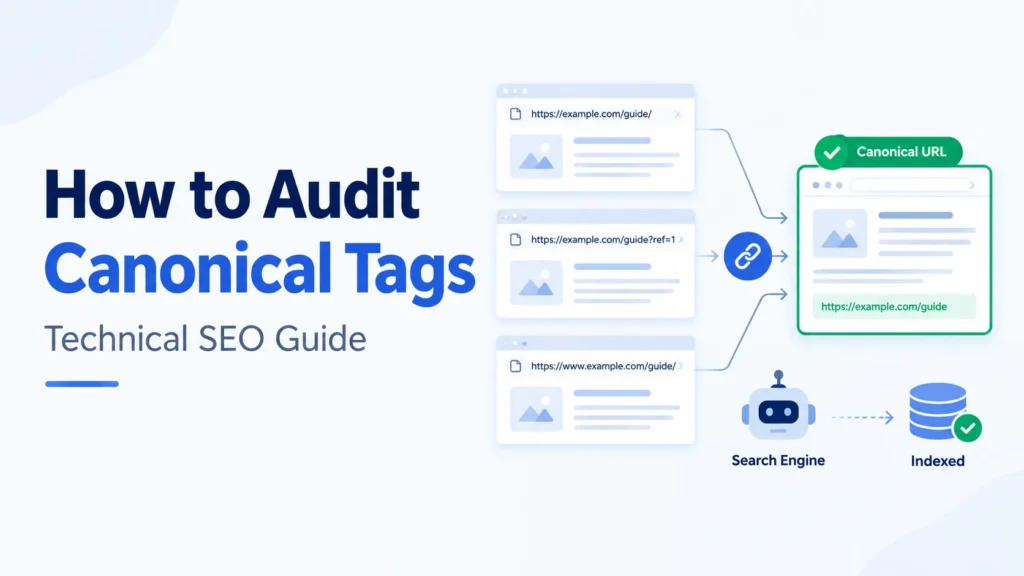
How to Audit Canonical Tags
Reading time: 14 min
How to Audit Canonical Tags: Find & Fix Canonical Issues
A misconfigured canonical tag does not throw an error. It does not break the page for visitors. It silently tells Google to ignore the URL you spent three weeks writing and to rank the wrong one instead — or, worse, to rank neither.
We audited 14 sites before building our meta tag checker and found the same five canonical mistakes on nearly every one. This guide walks through those five checks, explains what each failure actually costs you in ranking terms, and shows how to fix each one without a paid crawler or a seat licence.
If you already know what canonical tags are, skip to the five-check framework. If you need the 60-second version first, keep reading.
What canonical tags actually do — and the one thing they do not
A canonical tag is a single line in the <head> of an HTML page:
<link rel="canonical" href="https://example.com/shoes/running-shoes" />It tells search engines: “if you find content like this on other URLs, credit this URL with the rankings, the backlinks, and the index slot.”
That is it. One job.
The thing it does not do is force Google to obey. The canonical tag is a hint — a strong one — but Google reserves the right to ignore it when other signals point elsewhere. Those other signals include your XML sitemap, your internal links, your redirect chains, and even the trailing-slash consistency of your URLs.
An audit exists precisely because the tag itself is only as powerful as the signals surrounding it. When those signals conflict, Google picks the canonical for you. And Google’s pick is not always yours.
Why canonical issues are invisible until they are expensive
Unlike a broken link that produces a visible 404, a canonical issue produces no visible error at all. The page loads, the content appears, analytics record a visit. But in Google’s index, one of these things is happening quietly:
- Wrong page indexed. Google picks the version with tracking parameters instead of the clean URL. Your search snippet shows
?utm_source=newsletter&utm_medium=emailin the address bar. - Ranking signal diluted. Two pages compete for the same keyword. Each one has half the backlinks, half the internal links, half the authority. Neither reaches page one.
- Crawl budget wasted. Googlebot spends requests on duplicate versions instead of your new pages. For large sites (50,000+ URLs), this is not theoretical — it is measurable in the crawl stats report in Search Console.
- Consolidation reversed. You set up canonicals deliberately, a template update resets them, and Google quietly starts indexing the variants again. Nobody notices for weeks.
The only way to catch these is to look — systematically, not page by page.
The five-check canonical audit framework
Every canonical problem we have found on a real site falls into one of five categories. Run them in this order because each check builds on the previous one.
Check 1 — Missing canonical tags
What to look for: Pages that have no rel="canonical" in the <head> at all.
Why it matters: Without a canonical tag, Google decides which version of the page to index. If the page has URL parameters, pagination, or mixed-case variants, Google may choose a version you did not intend. A self-referencing canonical — one that points to the page’s own URL — is the standard defence against this.
Where this usually happens:
- Custom-built pages where the developer did not add the tag and no SEO plugin is installed.
- JavaScript-rendered pages where the canonical tag is in the initial HTML but gets overwritten (or removed) when the framework hydrates.
- Paginated URLs (
/blog/page/2/,/blog/page/3/) that the CMS does not auto-canonicalise.
How to check: View the page source (Ctrl+U), search for canonical. If the string does not appear in the <head>, the tag is missing. For a site-wide check, use our Meta Tag Checker — it extracts the canonical for every URL you give it, and flags pages where the tag is absent.
How to fix: Add a self-referencing canonical tag to every indexable page. If you use WordPress with Rank Math or Yoast, this is on by default — but verify it has not been overridden in a custom template. If you use a static generator or a custom CMS, add the tag in your base layout and populate it with the current page’s clean URL.
Check 2 — Multiple canonical tags on one page
What to look for: Pages that have two or more rel="canonical" tags in the <head>.
Why it matters: When Google finds two canonicals, it ignores both. The page is then treated as if it has no canonical at all — which puts you back in “Google decides” territory. This is strictly worse than having one wrong canonical, because at least a wrong one signals intent.
Where this usually happens:
- An SEO plugin adds a canonical, and the theme’s header.php also hardcodes one.
- A page builder plugin (Elementor, Divi) injects its own canonical alongside the SEO plugin’s.
- A caching plugin renders a static version of the page where a dynamic canonical tag got duplicated during the build step.
How to check: View page source → Ctrl+F → search canonical. Count the matches inside the <head> (ignore any in the body or in comments). If the count is anything other than 1, the page has a problem.
How to fix: Find which source is generating each tag. Disable the one that should not be there. In WordPress, this usually means removing the hardcoded tag from the theme’s header.php and letting the SEO plugin handle it exclusively. After the fix, clear your caching layer (page cache, CDN, Varnish) and re-check the live source — not the WordPress editor preview.
Check 3 — Canonical points to a non-indexable URL
What to look for: A canonical tag that points to a URL which returns a non-200 status (301, 302, 404, 410, 500) or a URL that has a noindex directive.
Why it matters: You are telling Google “the preferred version of this page is at URL X” — and then URL X is either redirecting, broken, or explicitly excluded from the index. Google receives two conflicting instructions from the same site. In practice, it usually ignores the canonical entirely.
Common patterns:
- The canonical still points to an HTTP version after a site-wide HTTPS migration. The HTTP URL 301s to HTTPS, so the canonical target is a redirect — not a final destination.
- The canonical points to a page that was later deleted (404) or merged (301’d into another page).
- The canonical points to a staging or development URL that is noindexed, or that returns a 403 behind basic auth.
How to check: Extract the canonical URL from the page. Then check its HTTP status using the Bulk URL Status Code Checker. If the status is anything other than 200, the canonical is broken. Also check the target URL’s <meta name="robots"> tag using the Meta Tag Checker — if it contains noindex, the canonical is pointing to a dead end.
How to fix: Update the canonical tag to point to the final, live, indexable URL. If the old URL is 301’d, point the canonical to the redirect’s destination. If the old URL is 404, either restore the page or remove the canonical and let the current page self-canonicalise.
Check 4 — Canonical conflicts with other signals
What to look for: A canonical tag that says one thing while the sitemap, internal links, or hreflang tags say another.
Why it matters: Google weighs multiple signals when choosing a canonical. If the canonical tag says /shoes/ but the XML sitemap lists /shoes (no trailing slash), and 80% of internal links point to /shoes?color=all, Google has three competing answers. The tag alone may not win.
Signal conflicts to audit:
| Signal | Conflict looks like | Check with |
|---|---|---|
| Sitemap | URL in sitemap ≠ URL in canonical tag (protocol, trailing slash, case) | Sitemap Validator |
| Internal links | Most internal links point to a different URL variant than the canonical | Crawl your site, compare link targets to canonicals |
| Trailing slash | Canonical uses /page/, but the site serves both /page and /page/ as 200 |
Trailing Slash Checker |
| HTTPS | Canonical uses https:// but some internal links still use http:// |
Broken Link Checker (catches mixed-content links) |
| Hreflang | Hreflang href value ≠ canonical tag value for the same page |
Hreflang Tag Generator (use its validation mode) |
| Open Graph | og:url ≠ canonical tag URL (Facebook and some crawlers use og:url as a canonical signal) |
Open Graph Checker |
How to fix: Pick one canonical URL for each page. Then make every other signal agree with it — same protocol, same trailing slash, same case. This sounds tedious, and it is. But conflicting signals are the number-one reason Google overrides a perfectly valid canonical tag.
Check 5 — Canonical tag format errors
What to look for: Tags that exist and point to the right page — but contain a syntax or format error that weakens the signal.
Common format issues:
- Relative URL instead of absolute.
<link rel="canonical" href="/shoes/running-shoes" />is technically valid but Google explicitly recommends absolute URLs. A relative URL can resolve incorrectly when the page is rendered through a proxy, a CDN, or a staging domain. - Tag placed outside <head>. A canonical in the
<body>is ignored. This happens when a CMS template closes the<head>early or when a plugin injects the tag at the wrong hook. - Tag in an HTTP header and in HTML. The
Link: <URL>; rel="canonical"HTTP header and the HTML tag can coexist, but if they point to different URLs, you have created a Check 2 problem at the protocol level. - Parameterised self-canonical. The canonical includes query parameters like
?ref=homepagethat should have been stripped. The tag technically works, but it canonicalises the wrong variant.
How to check: View source. Confirm the tag is inside <head>. Confirm the href starts with https:// (absolute). Confirm it contains no query parameters that are not part of the page’s intended canonical URL.
How to fix: Switch to absolute URLs in your canonical output function. Audit your server headers for a Link canonical. Strip tracking parameters before the canonical tag is generated — not after.
The canonical decision tree
When you find a page with a canonical issue, the fix depends on what the page is. Use this as a quick reference:
| Page type | Correct canonical behaviour |
|---|---|
| Normal page (unique content) | Self-referencing canonical → its own clean URL |
Parameterised variant (?color=red, ?sort=price) |
Canonical → the base URL without parameters |
Paginated page (/blog/page/2/) |
Self-referencing canonical per page (do not canonicalise all pages to page 1 — Google deprecated rel=prev/next but still indexes paginated pages individually) |
| Print-friendly or AMP version | Canonical → the primary HTML version |
| HTTP version of an HTTPS page | 301 redirect to HTTPS (the canonical is a backup, not the primary fix) |
| www vs non-www | 301 redirect one to the other (again, do not rely on canonicals alone for domain-level deduplication) |
| Syndicated content on another domain | Cross-domain canonical → the original publisher’s URL |
| Deprecated page being merged | 301 redirect to the merge target (not a canonical — the old page should stop existing) |
How to verify your canonicals using Google Search Console
After running the five checks and deploying fixes, confirm that Google is actually respecting your canonicals. Search Console’s URL Inspection tool is the only source of truth for this.
Open Search Console → URL Inspection → paste the URL. Look at two fields:
- User-declared canonical: This is the URL from your
rel="canonical"tag. It confirms Google saw the tag. - Google-selected canonical: This is the URL Google actually decided to index. If it matches the user-declared canonical, your tag is working. If it does not, Google overrode you — and you need to investigate why.
When Google’s selection differs from yours, the most common causes are signal conflicts (Check 4), redirect chains in front of the canonical target (Check 3), or a page that Google considers substantially different from the canonical — which means the content on the two URLs is not similar enough for Google to treat them as duplicates.
Also check the Google Index Status Checker for pages you expect to be indexed — if Google is choosing a different canonical, the page you intended may not be in the index at all.
Canonical audit checklist — the short version
Print this. Run it once a quarter, or after every site migration, template change, or CMS plugin update.
- Every indexable page has exactly one
rel="canonical"tag in<head>. - The canonical URL returns HTTP 200 and is not noindexed.
- The canonical uses an absolute URL starting with
https://. - The canonical URL matches what is in the XML sitemap — same protocol, same trailing slash, same case.
- Internal links point to the same URL variant as the canonical.
og:urlmatches the canonical.- Hreflang
hrefvalues match their respective canonical tags. - No page has two or more canonical tags.
- Parameterised URLs canonicalise to the clean base URL.
- Google Search Console’s “Google-selected canonical” matches your declared canonical on key pages.
ToolsVale tools for canonical auditing
We built these before writing this guide — each one targets a specific check in the framework above.
| Check | Tool | What it does |
|---|---|---|
| 1, 2, 5 | Meta Tag Checker | Extracts canonical tags, counts them, flags missing or duplicate tags, checks absolute vs relative URL format |
| 3 | Bulk URL Status Code Checker | Paste your canonical target URLs in bulk — get the HTTP status of each. Instantly surfaces 301s, 404s, and 5xx errors |
| 4 (sitemap) | Sitemap Validator | Validates your XML sitemap against the spec and checks for URL inconsistencies |
| 4 (trailing slash) | Trailing Slash Checker | Checks whether both /url and /url/ return 200 — the most common cause of canonical-vs-sitemap mismatch |
| 4 (OG tags) | Open Graph Checker | Extracts og:url and compares it to the canonical |
| Verify | Google Index Status Checker | Checks whether Google has actually indexed the canonical URL you intended |
| Related | SEO Audit Checker | Runs a broader technical SEO audit that includes canonical tag validation alongside other on-page checks |
Frequently asked questions
What is a canonical tag?
A canonical tag (rel="canonical") is an HTML element in the <head> section that tells search engines which URL is the preferred version of a page. When multiple URLs serve similar or identical content, the canonical tag points to the one that should be indexed and receive ranking credit.
How many canonical tags should a page have?
Exactly one. If a page has zero canonical tags, Google chooses the canonical for you based on internal signals — and its guess may not match your intent. If a page has two or more, Google ignores all of them, which is worse than having none.
Should a canonical tag point to itself?
Yes. A self-referencing canonical — where the tag points to the page’s own URL — is the standard best practice. It explicitly tells Google “this is the canonical version” rather than leaving the decision to inference.
Does a canonical tag guarantee Google will index that URL?
No. The canonical tag is a strong hint, not a directive. Google may choose a different URL if other signals — like internal links, sitemaps, or redirect chains — contradict the canonical. This is why auditing for conflicting signals (Check 4 in the framework above) matters as much as checking the tag itself.
What is the difference between a canonical tag and a 301 redirect?
A 301 redirect sends users and crawlers to a different URL entirely — the original URL is no longer accessible. A canonical tag keeps both URLs accessible but tells search engines to credit only one. Use a 301 when you want to permanently retire a URL. Use a canonical when both URLs need to stay live — for example, parameterised URLs used for tracking or filtering.
Can I use a canonical tag across different domains?
Yes. Cross-domain canonicals are valid and useful when the same content appears on multiple domains — syndicated articles are the most common example. However, Google is more sceptical of cross-domain canonicals and may ignore them if the pages are not substantially similar.
How often should I audit canonical tags?
At minimum, once a quarter. Additionally, run an audit after any site migration, CMS update, template redesign, or plugin change. These are the events most likely to silently break canonicals site-wide.
Can canonical tag issues cause keyword cannibalization?
Yes — directly. When two pages with similar content lack proper canonicalisation, Google may index both and force them to compete for the same keyword. This is one of the root causes of keyword cannibalization, and fixing canonicals is often the simplest path to resolving it.
Related reading
- Best Content Cannibalization Checker Tools — when canonical issues cause internal keyword competition
- XML Sitemap Guide — how to ensure your sitemap URLs match your canonicals
- What Is a 404 Error? — what happens when a canonical points to a dead page
- Soft 404 vs Hard 404 — why a soft 404 at a canonical target is worse than a hard one
- Broken Link Statistics — data on how commonly sites have broken internal signals
- AI Crawlers Robots.txt Guide — managing crawler access signals alongside canonical strategy