
How to See All Images on Any WordPress Site

WORDPRESS - IMAGES - SECURITY
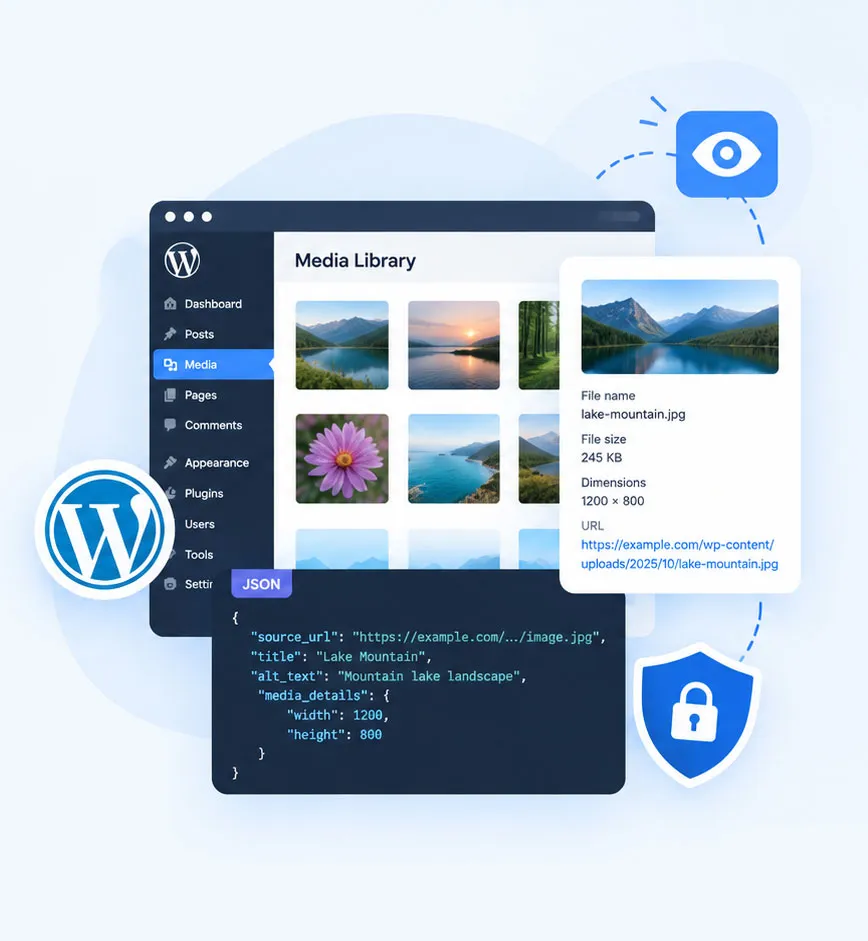
Every WordPress site keeps its pictures in a place called the media library. Most people think only the site owner can open it. That is not always true. On many sites, anyone can open a public list of every image, with file names, sizes and links, without logging in.
In this guide you will learn how to see all images on a WordPress site in four simple ways. If you own a site, you will also learn how to hide your own list in about five minutes.
Can You Really See All Images on a WordPress Site?
Yes, in many cases. WordPress stores uploaded media in its Media Library, and many public WordPress sites expose useful media information through their pages or REST API. This means you may be able to find image URLs, filenames, and other media details without logging into the website.
Find Direct Image URLs
Find direct image URLs and identify where WordPress media files are hosted.
No Dashboard Access Needed
Inspect publicly available WordPress media without needing the website owner's WordPress username or password.
Find WordPress Media
Explore publicly available images and media from a WordPress website without checking every page manually.
Step - By - Step Guid
4 Ways to See Images on a WordPress Site
There are several ways to find images on a WordPress website. If you own the site, you can use the Media Library. If you are checking a public website, you can inspect its available media, REST API, or individual pages. Choose the method that works best for you.
Method 1: Use the WordPress Media Library
Steps (numbered, 4 steps):
Method 2: See Images Through the REST API
WordPress has a built-in REST API. One of its standard routes lists uploaded media. Open this address in your browser:
https://example.com/wp-json/wp/v2/media?per_page=100
Method 3: Inspect the Page Source
Open the page you want to check.Press Ctrl + U (Windows) or Cmd + Option + U (Mac).Press Ctrl + F and search for wp-content/uploads.Copy any image link you find.This only shows images used on that page, not the full library.
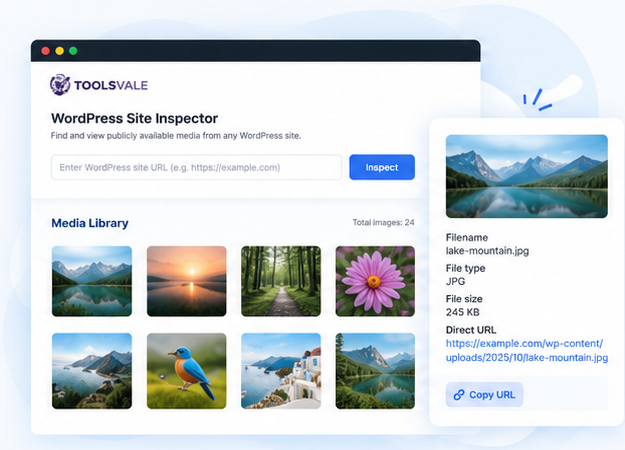
Method 4: Use the Free WordPress Site Inspector
The easiest way. Enter any WordPress site URL and click Explore.Feature list (icon + text, 4 items):Visual grid with image previewsSearch by filename, title or URLFilter by images, PDF, video or audioCopy direct media URLs in one clickNote under the list: Runs in your browser. Read-only. Nothing is uploaded to our servers
Find WordPress Images in Seconds
Instead of checking WordPress pages one by one, use the free WordPress Site Inspector to explore publicly available media from a WordPress website in one place.
Search by filename or title
Quickly find the image you need.
Preview available images
See image thumbnails without opening every page.
Copy direct media URLs
Get the image URL when it is publicly available.
No WordPress login required
Inspect publicly accessible media without dashboard access.

Want to Check a WordPress Site?
Enter a WordPress site URL and explore its publicly available media with ToolsVale's free WordPress Site Inspector.